 DogMate by KalisPro
Rules accepted with a reaction on Discord
DogMate posts your rules, or uses a message you already have, and adds a reaction under it. A new member accepts with one click. Then the bot opens verification or gives the role straight away.
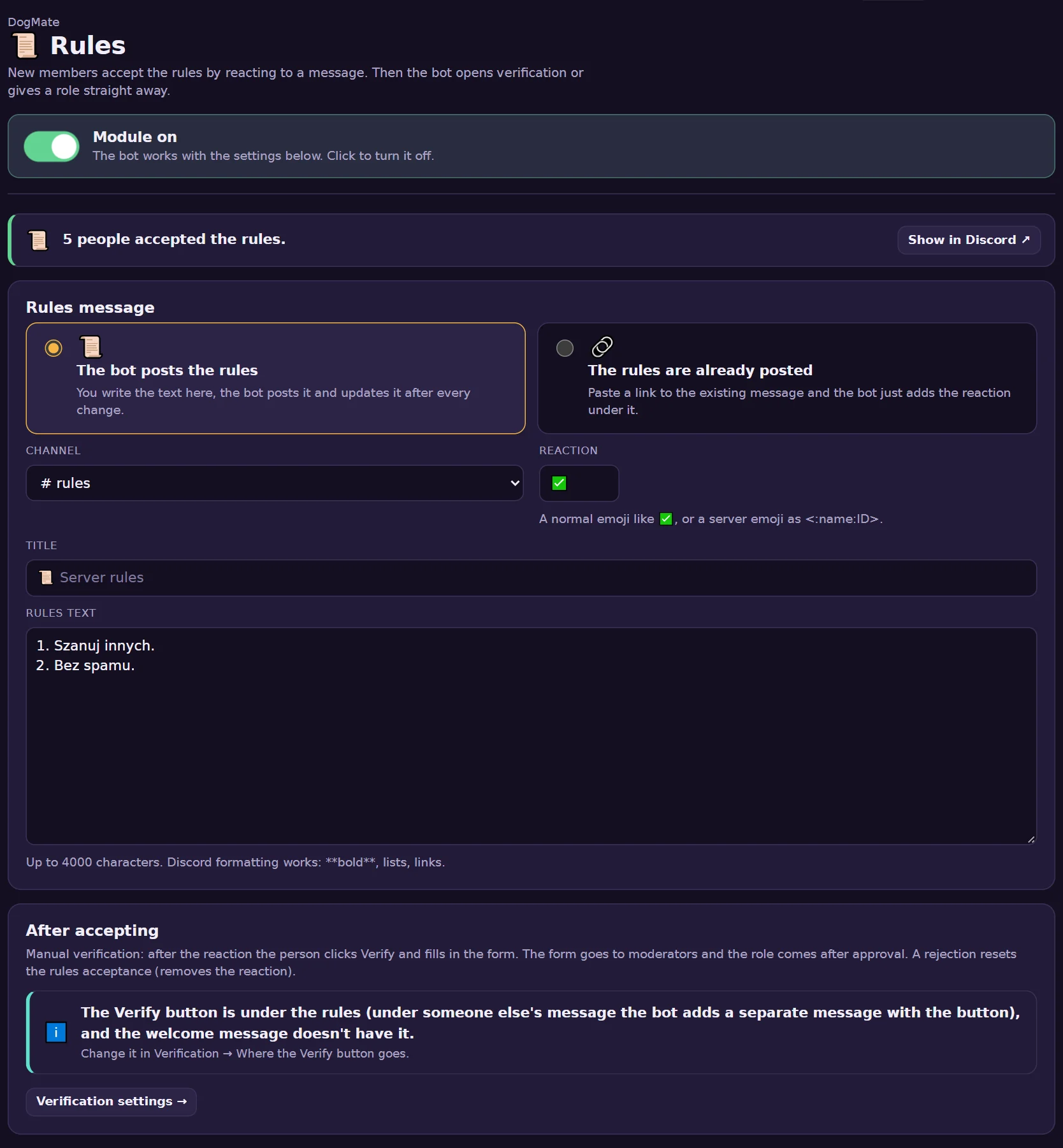
Step by step
- Turn on Rules. In the dashboard open Rules and switch the module on.
- Choose how to post them. The bot posts the rules: you write the title and the text (up to 4000 characters, with Discord formatting like
**bold**, lists and links), the bot posts them and edits the same message after every change. The rules are already posted: paste the link to your message (right-click it in Discord, Copy Message Link) and the bot only adds the reaction. - Pick the channel and the reaction. A normal emoji like ✅, or your server's emoji.
- Connect it with verification. In Verification, under "Where the Verify button goes", choose whether the button sits under the rules.
What happens after the reaction
- Automatic verification: the member clicks Verify and gets the role at once.
- Manual verification: the member clicks Verify, fills in the form and the role comes after a mod accepts it. A rejection also removes the reaction, so the rules count as not accepted.
- Clicking Verify before the reaction gets a reply asking to accept the rules first, with a link to the message.
The dashboard shows how many people accepted the rules and has a link to the message on Discord.
Common problems
The bot doesn't add the reaction
It needs to see the channel and add reactions there. With your own message, check that the link leads to that exact message.
Nobody gets the role
Drag the DogMate role above the role it gives in your server settings.